How to Use Seedance 2.5: Text-to-Video, Image-to-Video, and References
A practical guide to using Seedance 2.5 for text-to-video, image-to-video, multimodal references, native audio, and longer story beats.

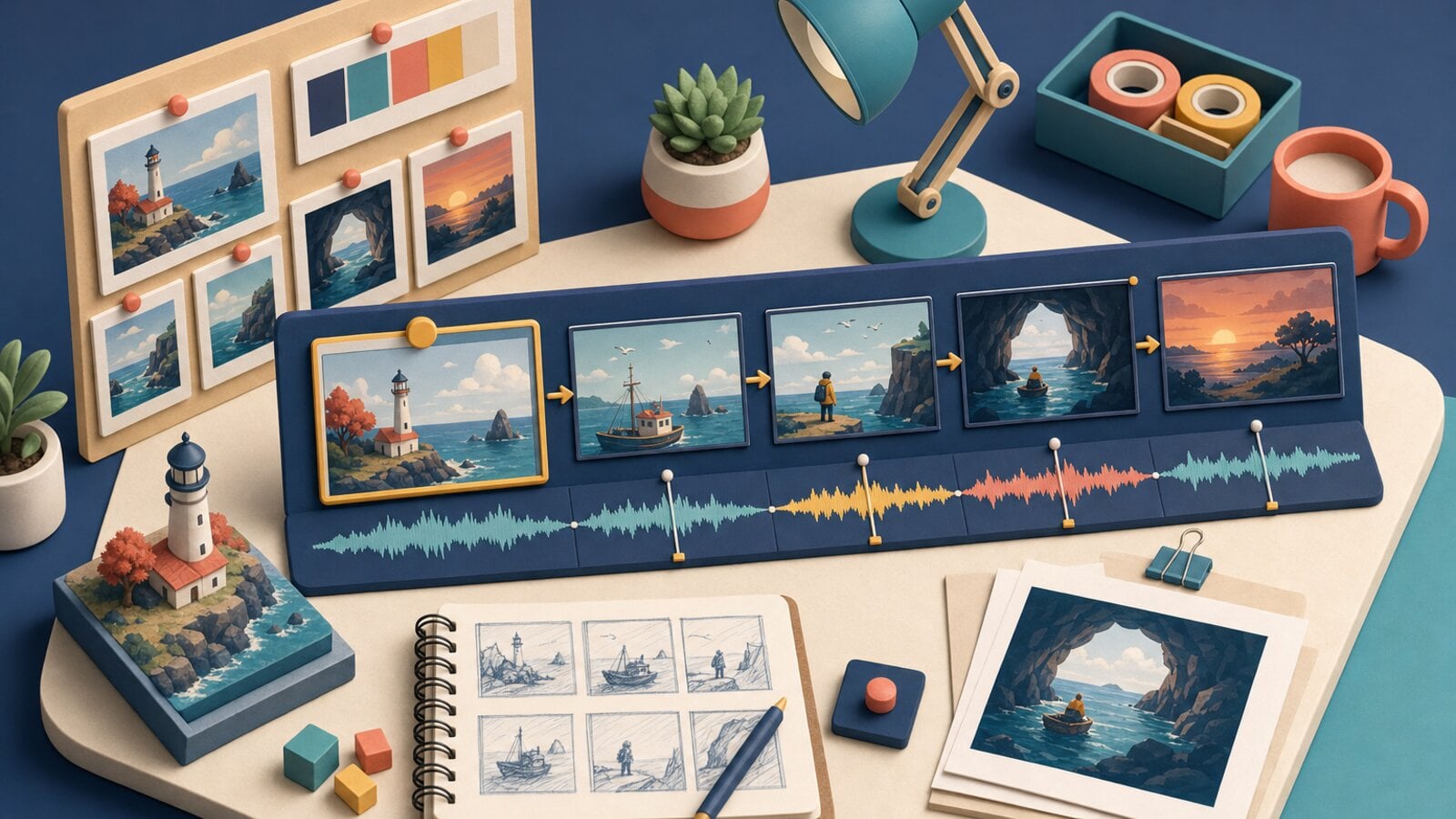
Seedance 2.5 is built for video prompts that describe more than a single visual moment. It can take a scene brief, an opening image, a set of references, or a multimodal production direction and turn it into a longer audio-video clip.
This guide shows how to think about Seedance 2.5 across text-to-video, image-to-video, and reference-led workflows.
For a comparison of the available versions, start with the Seedance model family overview.
Use the examples as a starting point
The Seedance 2.5 page now includes three clean 20-second examples from VideoGen. They are useful references for thinking about duration, subject movement, and whether a scene needs dialogue or captions.
Choose the right starting point
Start with the input that gives the model the most useful context:
- Text-to-video: best when the subject, setting, camera, and style can be explained clearly in words.
- Image-to-video: best when the opening frame already has the product, person, or composition you want.
- Reference-to-video: best when identity, motion, sound, or style depends on multiple source assets.
In VideoGen, start from the Seedance 2.5 model page or from the workflow that matches the final video you are making. The same model can serve different jobs depending on the input.
Write a brief, not a keyword pile
A Seedance 2.5 prompt should read like a shot brief:
Eight-second product scene. A matte black travel mug sits on a wet stone ledge at sunrise. A slow camera push moves from a medium shot to a close-up of condensation on the metal. Warm side light, shallow depth of field, realistic water movement, soft city ambience, no text or logo.
The prompt names:
- Duration and scene type.
- Product and surface.
- Camera movement.
- Lighting and focus.
- Motion detail.
- Sound direction.
This gives the model a sequence to execute rather than a collection of visual adjectives.
Use image-to-video for product continuity
If you already have a product image, use it as the first frame and describe the motion around it:
Use the supplied product image as the opening frame. Keep the bottle shape, label, and camera angle unchanged. The camera makes a slow rightward arc while sunlight moves across the glass. Condensation gathers on the surface. Add a restrained water pour sound and a soft room tone.
Do not ask the model to redesign the product while also asking it to animate the product. Separate identity from motion. The first instruction establishes what must remain fixed. The next instructions describe what should move.
Use references for people, products, and style
Reference-led generation is useful when a text prompt cannot fully describe the visual:
- One image for the product identity.
- One image for a person or actor.
- One frame for the desired composition.
- One video for movement or timing.
- One audio clip for voice or sound direction.
Give the references explicit roles in the prompt. For example:
Use image 1 for the product identity and image 2 for the studio lighting. Use the supplied audio for the spoken line. Keep the product proportions unchanged. The product rotates slowly on a turntable while the camera remains locked.
That instruction is easier to audit than “use these references.”
Direct a longer story beat
Seedance 2.5 can generate longer sequences, but longer output needs structure:
Three-beat product story:
1. Close-up of a folded jacket on a clean table, morning light.
2. The jacket is lifted and worn as the camera follows the movement into a hallway.
3. The person steps outside and turns toward camera for a final product hero pose.
Keep the same jacket, color, lighting direction, and restrained ambient sound across all three beats.
Keep each beat focused on one camera idea. If every beat contains several competing actions, the model has fewer clear decisions to make.
Use Seedance 2.5 in VideoGen workflows
The model fits naturally into VideoGen's production surfaces:
- Prompt to video: start with a full scene brief and refine the motion.
- Storyboard to video: create a longer scene while carrying character and product references.
- Script to video: generate supporting footage around narration.
- Entities: reuse a product or actor reference across multiple shots.
For examples created in VideoGen, visit Seedance Prompts. The page shows motion, dialogue, product, and multi-shot prompts with generated outputs. The Seedance 2.5 page shows the model's current product context.
A production review checklist
Before keeping a Seedance 2.5 generation, check:
- Does the subject remain recognizable throughout the clip?
- Does the camera complete the requested movement?
- Does the product label or identity drift?
- Does native audio match the action?
- Do transitions between beats feel intentional?
- Is the output ready to enter the edit, or does it need a tighter prompt?
If one part is wrong, revise that part. Do not rewrite the prompt from scratch unless the overall scene is wrong.
Read Fal's workflow reference
Fal's Seedance 2.5 workflows guide covers the provider's endpoint structure, reference inputs, durations, and pricing. VideoGen adds the project layer so the resulting clips can sit alongside scenes, narration, captions, and other generated assets.

 Merhannah A.
 Richard D.