Seedance AI Video Generator
Use Seedance in VideoGen to turn prompts and reference media into video clips. Explore Seedance 2.0 and 2.5, then build a product story with your shots, voiceover, and captions.
Example outputs from Seedance 2.0
Real prompts, real outputs, generated with Seedance 2.0 in VideoGen.

“Dynamic multi-shot chase: a parkour runner vaults across Moroccan rooftops at dusk, camera whips between wide drone shots and close handheld follows, footsteps and wind audible”
Generated with Seedance 2.0 in VideoGen

“Luxury perfume commercial: liquid gold ribbons swirl around a crystal bottle in slow motion, then snap into the logo etching as orchestral swell peaks”
Generated with Seedance 2.0 in VideoGen
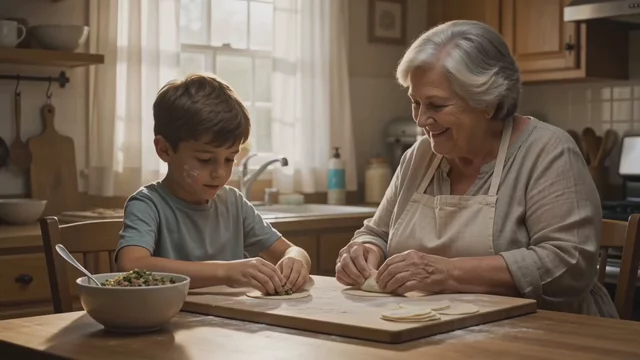
“Warm kitchen scene: a grandmother teaches her grandson to fold dumplings, she laughs and says 'Not too much filling, patience!', flour dust catches the window light”
Generated with Seedance 2.0 in VideoGen
What is Seedance?
Seedance is a family of AI video models for expressive motion and scenes guided by reference media. Inputs and clip limits depend on the version and mode.
Text-to-video
Describe the subject, action, camera movement, and mood. For a product reveal, give the clip one clear action, such as a bottle turning toward the light.
Image-to-video
Start with a product image when the opening frame matters. Describe how the subject or camera should move in a mode that supports image inputs.
Reference-guided scenes
Use supported image, video, or audio references to guide a scene. Check the version page for its reference types and limits.
Prompt ideas and examples
Explore Seedance prompts for motion, product shots, and dialogue. Adapt the subject and camera direction to fit your own storyboard.
Compare Seedance 2.0 and Seedance 2.5
Use this overview to find the version that fits your shot. Each version page has its own input limits and examples.
Seedance 2.0
Explore Seedance 2.0 for expressive clips guided by image, video, and audio references.
Seedance 2.5
Explore Seedance 2.5 for longer clips in one generation and more reference material.
Plan around the clip length
Use a short shot for a product detail. Consider a longer generation when several actions need to stay in one continuous scene.
Build the complete video
Combine Seedance scenes with other VideoGen tools when the storyboard calls for a different look.
How to create a Seedance video in VideoGen
1.Start a project
Open a video or create a new storyboard.
2.Plan the scene
Decide what the shot needs to show and how it should move.
3.Add a prompt
Describe the scene and attach supported references when useful.
4.Build the sequence
Place the generated clip with your other shots and refine the timing.
5.Finish and export
Add voiceover, music, and captions before sharing the final video.
Product stories made in VideoGen
See how individual shots become complete product videos.
Apparel & fashion product video
Food & beverage product video
Frequently asked questions
Start a video projectTurn your next idea into a finished video
Bring your scenes together with editing, voiceover, music, and captions in VideoGen.
Related AI video models
- Seedance 2.0High-quality AI video generation with reference media
- Seedance 2.530-second single-pass video with native audio and up to 50 reference inputs
- Seedance PromptsCopy-paste Seedance prompts with real generated outputs
- Best AI Video ModelsThe best AI video models in 2026, ranked and benchmarked
- Higgsfield AI, HeyGen AI, Seedance, and VEED in VideoGen
- How to Use Seedance 2.0: Prompting and Multi-Shot Video
- How to Use Seedance 2.5: Text-to-Video, Image-to-Video, and References