Higgsfield Moodboard: How to Use in VideoGen
Learn how to use Higgsfield AI Moodboards in Soul 2.0, which reference images work, and how to get the same consistent look in a VideoGen project.

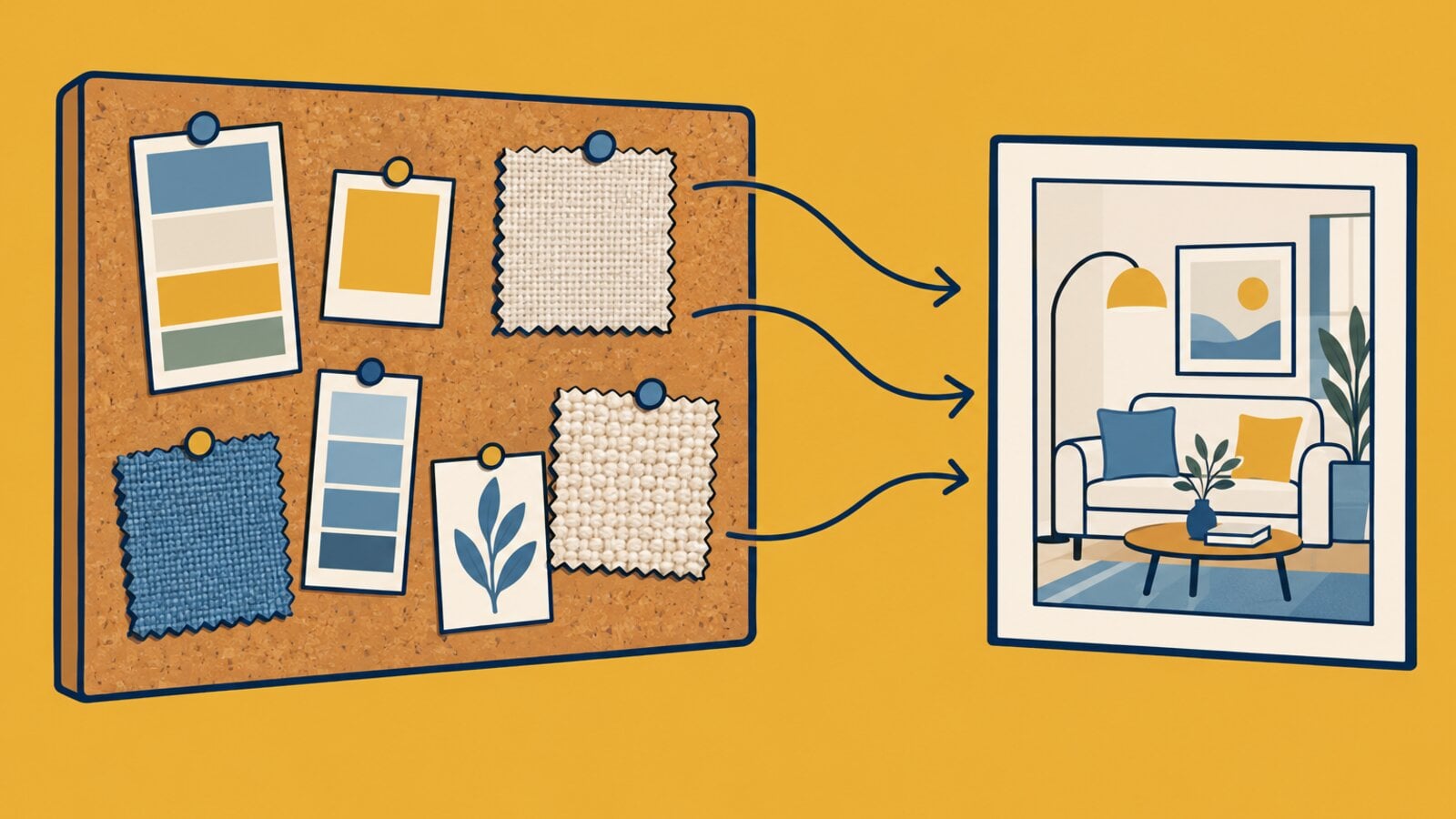
To use a Higgsfield Moodboard, open Soul 2.0 in the Higgsfield web app, upload 20 to 30 cohesive reference images as a custom style preset, select that Moodboard in the preset slot, and write your prompt; Soul 2.0 applies the lighting, texture, contrast, and color it learned from your images to every generation. If you are learning how to use Higgsfield AI for a consistent visual style, Moodboards are the feature to understand first.
VideoGen does not have a feature named Moodboard. This guide explains how Moodboards work in Higgsfield, then shows the VideoGen way to the same outcome: a set of images that share one look, animated into a finished video.
What a Higgsfield Moodboard is
Soul is Higgsfield's image model family. Soul works from presets. Soul 2.0 gives you full control: a prompt, a preset or Moodboard, a Soul ID character, a Soul HEX palette, and a reference image. Soul Cinema makes cinematic stills.
A Moodboard sits in the preset slot of Soul 2.0. You upload your own reference images and Soul 2.0 learns their lighting, texture, contrast, and color. Every prompt you run with that Moodboard selected inherits the look. Higgsfield also ships 20+ curated Moodboards if you do not want to build your own.
Two limits matter before you start:
- Moodboards exist only in Soul 2.0, not in Soul or Soul Cinema.
- With a single reference image attached, the prompt field is unavailable. A Moodboard is how you combine a learned style with a written prompt.
Higgsfield documents the feature in its Soul help page and its custom Moodboard guide.
Pick reference images that work
The quality of a Moodboard comes from the reference set. Higgsfield's rules are specific:
- Use 20 to 30 images. The upper limit is 80, but a tight set teaches a clearer style.
- Keep the set cohesive. One lighting style, one palette, one texture family.
- Use high-resolution images. Blurry or compressed images weaken the result.
- No faces. The Moodboard is for style, not identity. Use Soul ID for a character.
- No mixed styles. Half film photography and half flat illustration teaches neither.
The same rules apply to a VideoGen reference set, so collect the images once.
Build a Moodboard in Soul 2.0
Follow Higgsfield's current guide for button names, since screens change. The sequence is:
- Open Soul 2.0 in the Higgsfield web app. Moodboards are not available in the other Soul modes.
- Create a new Moodboard, name it, and upload your 20 to 30 reference images.
- Select the Moodboard in the preset slot, write a prompt, and generate.
- Review a few results. If the look drifts, remove the odd images from the set and try again.
Get the same consistent look in VideoGen
VideoGen has no Moodboard. What it has is reference images on image generation (image-to-image with style references) and a project where every scene can share one style description. The outcome is the same: a set of stills that match.
- Collect your reference set using the rules above. Pick up to 5 of the strongest images to attach as references; that is the limit per image edit in VideoGen, and a short, cohesive set is easier for a prompt to follow.
- Open the AI image generator or start a project. Choose a quality tier. Image edits with reference images run on GPT Image 2.5 first, with a different provider as the fallback. Low includes Flux Schnell (1 to 4 denoising steps, back in a few seconds) for drafts before you commit to the final set.
- Attach your reference images and write a prompt that ends with the same style line every time (template below).
- Generate one image per scene. Keep the subject part of the prompt different and the style line identical.
- If you prefer Higgsfield's look, generate Soul stills through the Higgsfield AI page instead. The VideoGen integration includes Soul for still images, with no separate Higgsfield account or API key. Available inputs and settings vary by tool.
- Review the set side by side. Re-generate any image that breaks the palette or lighting.
A style line you can reuse
Write the style line once and paste it at the end of every image prompt in the project. Fill the brackets from your reference set.
Style: [medium, such as editorial product photography], [lighting, such as soft window light from the left], [palette, such as warm sand, charcoal, and off-white], [texture, such as fine matte grain], [contrast, such as low contrast with lifted shadows], [framing, such as 50mm at eye level]. Keep this look identical in every image.
Filled in:
A ceramic coffee mug on a linen cloth, steam rising. Style: editorial product photography, soft window light from the left, warm sand, charcoal, and off-white palette, fine matte grain, low contrast with lifted shadows, 50mm at eye level. Keep this look identical in every image.
Change only the first sentence for the next scene. The style line does the job a Moodboard does in Higgsfield: it tells the model what must stay the same.
From stills to a finished video
Once the stills match, turn them into a video in the same project.
- Add the images to a storyboard-to-video or script-to-video project so each still becomes a scene.
- Run "Convert images to videos" to animate every eligible still. Write a short motion prompt, or leave motion automatic. Mute the generated audio if the video has a voiceover, and pick a quality tier. See the image to video AI page and the guide to the best AI image to video models for model notes.
- Review each clip for motion, consistency, and a clean end frame. Regenerate any scene that drifts from the look without touching the rest.
- Finish with an AI voiceover, captions, background music, transitions, and a logo, then export in 16:9, 9:16, or 1:1.
Converting images to video clips and exporting need a paid VideoGen plan; the free plan includes limited AI credits for other AI features. See pricing.
Frequently asked questions
How do I keep ten AI-generated images in the same style for one video in VideoGen?
VideoGen has no Moodboard feature, so attach up to 5 cohesive reference images to each image edit and end every prompt with the same style line. Change only the subject sentence between scenes and regenerate any image that breaks the look.
How many reference images does a Higgsfield Moodboard need, and can I include faces?
Higgsfield recommends 20 to 30 cohesive, high-resolution images, with a maximum of 80. Leave out faces, blurry images, and mixed styles; use Soul ID for a character instead.
Can I use a Higgsfield Moodboard in Soul Cinema or the original Soul?
No. Moodboards exist only in Soul 2.0, as of Higgsfield's October 2026 documentation. Soul works from presets and Soul Cinema makes cinematic stills.
Can I generate Soul images in VideoGen without a Higgsfield account?
Yes. The VideoGen integration includes Soul for still images and needs no separate Higgsfield account or API key. Higgsfield's own web app and phone app are covered in Does Higgsfield AI have an app.
Start a project in VideoGen, generate your matching stills, and animate them into a video in the same timeline.
Sources
- Higgsfield Help Center: How to use Soul to generate images
- Higgsfield blog: Create a custom AI Moodboard in Soul 2.0
- AI Image Generator on VideoGen
- Higgsfield AI on VideoGen
- Image to Video AI on VideoGen
- VideoGen blog: Best AI Image-to-Video Models for Product and Storyboard Video
- VideoGen pricing
- VideoGen blog: Does Higgsfield AI have an app: Complete User Guide
 Merhannah A.
 Richard D.
 Anton Koenig