Best AI Image-to-Video Models for Product and Storyboard Video
Compare the best AI image-to-video models for product visuals, storyboard frames, character references, motion, audio, and marketing workflows.

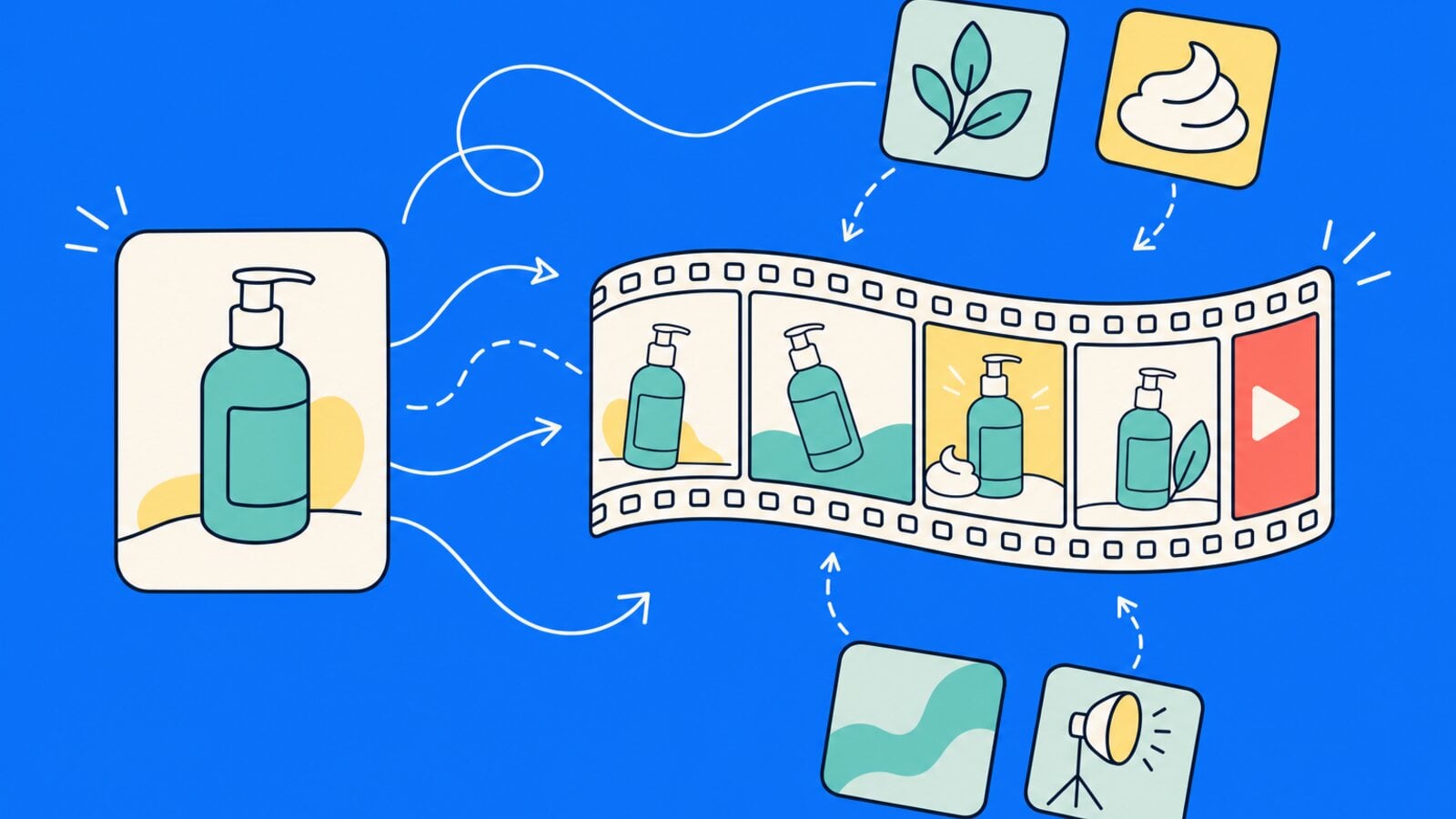
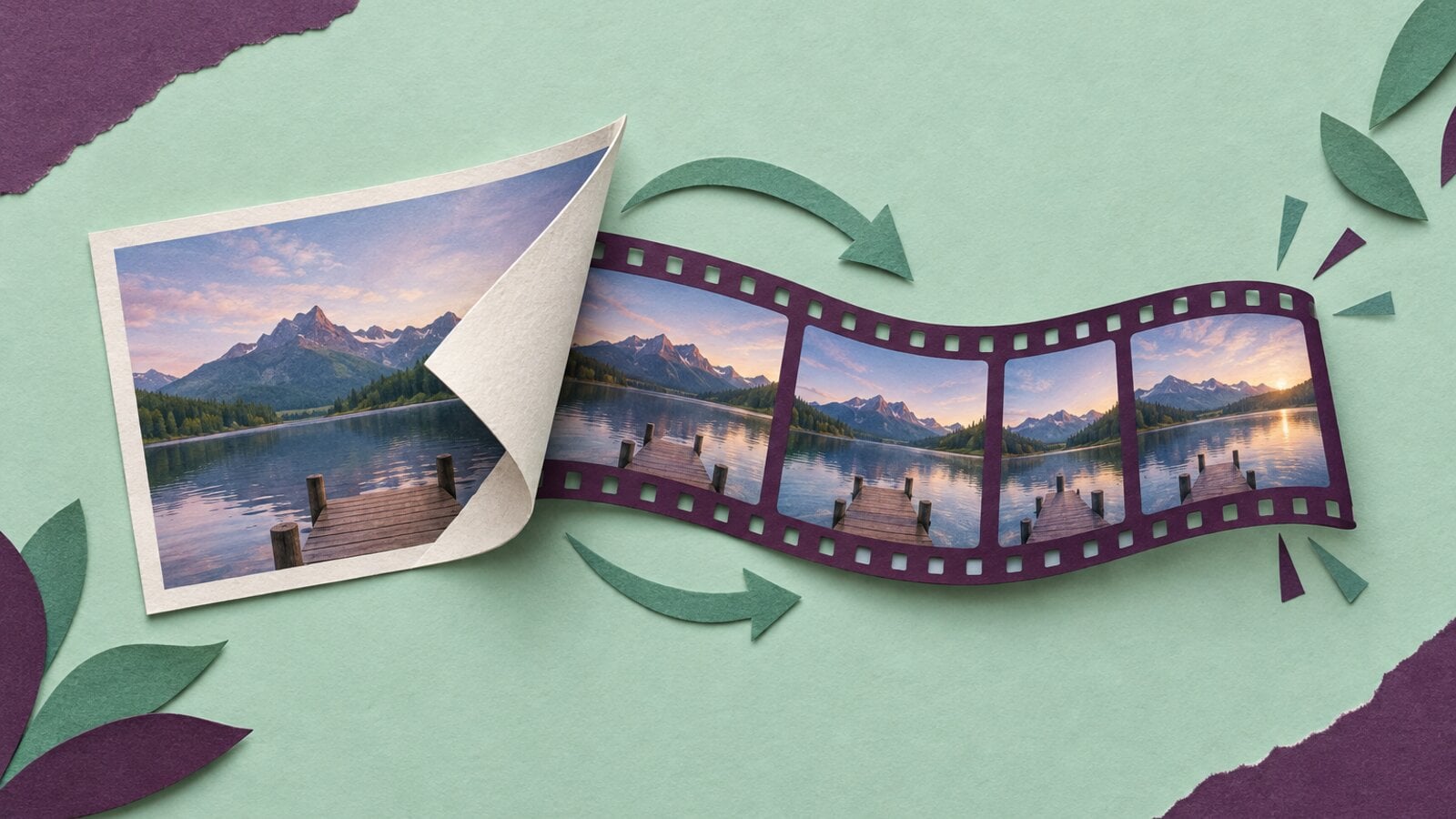
Image-to-video generation starts with a still image, but the model decides how that image moves. The best choice depends on whether you are animating a product, preserving a character, creating a storyboard shot, or adding native audio.
This guide compares the main image-to-video choices available in VideoGen and explains how to choose one for product and marketing work.
Fal's image-to-video API roundup is a useful provider reference for the same category. The comparison here focuses on what matters after the model returns a clip: continuity, editing, and use in a finished marketing video.
Start with real VideoGen outputs
The Image to Video AI page shows how a still can become a moving clip inside VideoGen. The examples below use existing public VideoGen outputs to illustrate the handoff from a designed image to motion.
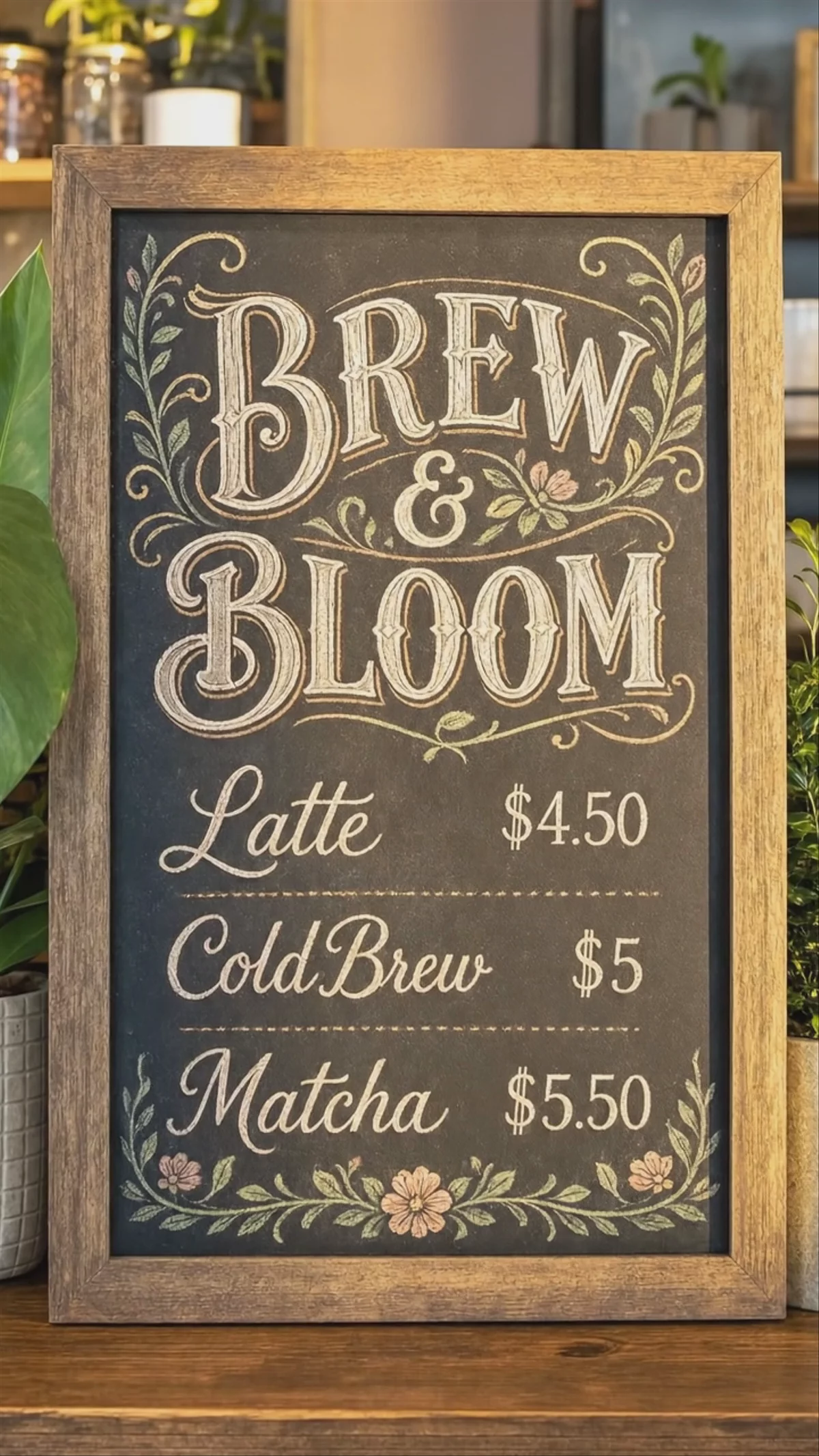
A designed cafe image becomes a slow camera move with subtle environmental motion.
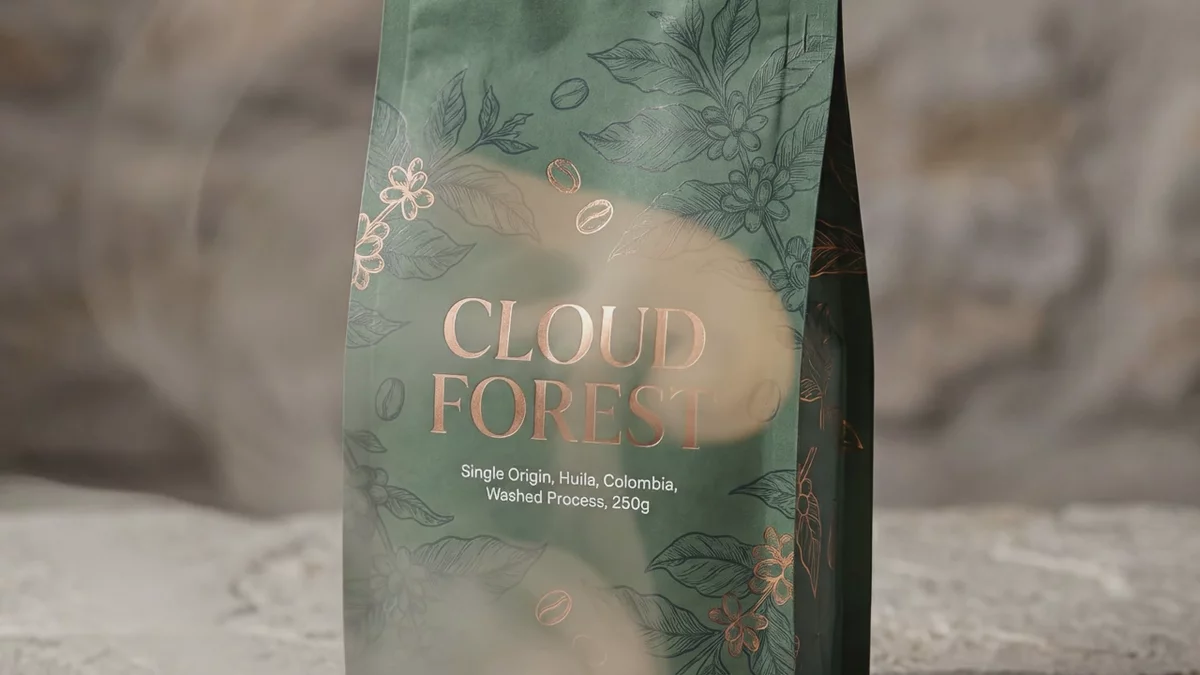
A product package stays anchored while steam and camera movement add life.
What makes an image-to-video model useful?
An image-to-video model needs to do more than move pixels. Look for:
- Subject preservation: the product, face, or object stays recognizable.
- Motion control: the prompt produces the requested action rather than generic movement.
- Camera control: push-ins, pans, tracking, and changes in perspective feel intentional.
- Reference support: extra images or clips can guide identity and style.
- Audio: dialogue, sound effects, and ambience match the scene.
- Workflow fit: the output can be edited into a larger video.
The right model depends on the first frame. A cinematic product image, a character portrait, and a diagram each need different treatment.
Seedance 2.0 for expressive references
Seedance 2.0 is a strong choice when the still image needs to become an expressive scene. It accepts multimodal references and generates synchronized audio alongside the clip.
Use it for:
- Product movement with sound design.
- Character-driven social clips.
- Dialogue and lip-synced scenes.
- Multi-shot sequences that carry one visual thread.
The Seedance 2.0 model page and Seedance Prompts show how to write the motion and audio direction.
Seedance 2.5 for longer story beats
Seedance 2.5 is aimed at longer, more continuous generations. It is useful when the image should become the first frame of a scene with several stages.
Use it for:
- A product entering, being used, and landing on a hero frame.
- A character moving through a scene with several beats.
- Storyboard frames that need more time before the cut.
- Reference-heavy scenes with products, people, and style inputs.
Check the Seedance 2.5 page for current availability and model details.
Veo 3.1 for cinematic output and audio
Veo 3.1 is a good candidate when output resolution, cinematic motion, and native sound are the priority. It can animate a starting image into a short scene with dialogue, effects, and ambience.
Use it for:
- Polished hero shots.
- Cinematic product reveals.
- Dialogue scenes where sound matters.
- High-resolution output requirements.
VideoGen's Veo 3.1 page contains the current specs and examples.
Kling for controlled cinematic motion
Kling is useful when the shot needs a strong cinematic feel, a defined opening frame, or a controlled multi-shot composition. Its reference and first-and-last-frame workflows are helpful when you know where a shot should begin and end.
Use it for:
- Product and material transformations.
- Camera-controlled shots.
- Character or object continuity across a sequence.
- Scenes that need a defined end frame.
See the Kling v3 page and the comparison set on Best AI Video Models.
Grok Imagine for quick image animation
Grok Imagine is a practical option when you already have a still and want to iterate quickly on the motion. It is useful for short social concepts, lightweight product motion, and rapid exploration.
Use it when:
- The starting image is already strong.
- You need several fast motion variations.
- The shot is short and does not require a long narrative arc.
How to prompt an image-to-video model
Start by telling the model what must stay fixed:
Keep the product shape, label, lighting direction, and composition unchanged. Add a slow camera push toward the bottle while condensation gathers on the glass. The background remains softly blurred. Add a quiet room tone and one gentle glass click at the end.
Then specify one main motion. If you request a camera move, a subject action, a background transformation, and a lighting change in one sentence, the model has to choose which instruction matters most.
Which model should marketing teams choose?
- Product identity and references: Seedance 2.0 or Seedance 2.5.
- Longer visual story: Seedance 2.5.
- Cinematic output and native audio: Veo 3.1 or Kling.
- Fast motion exploration: Grok Imagine.
- Storyboard continuity: choose the model that preserves the starting frame and supports the references your scene needs.
The best test is to run the same product image and motion brief through two or three models, then compare subject preservation, motion, audio, and the amount of cleanup required.

 Merhannah A.
 David Grossman