What Features Does Image to Video AI Offer?
Image to video AI turns a still into a moving clip. See the core features, from motion prompts to lip-sync, and how each works in VideoGen.
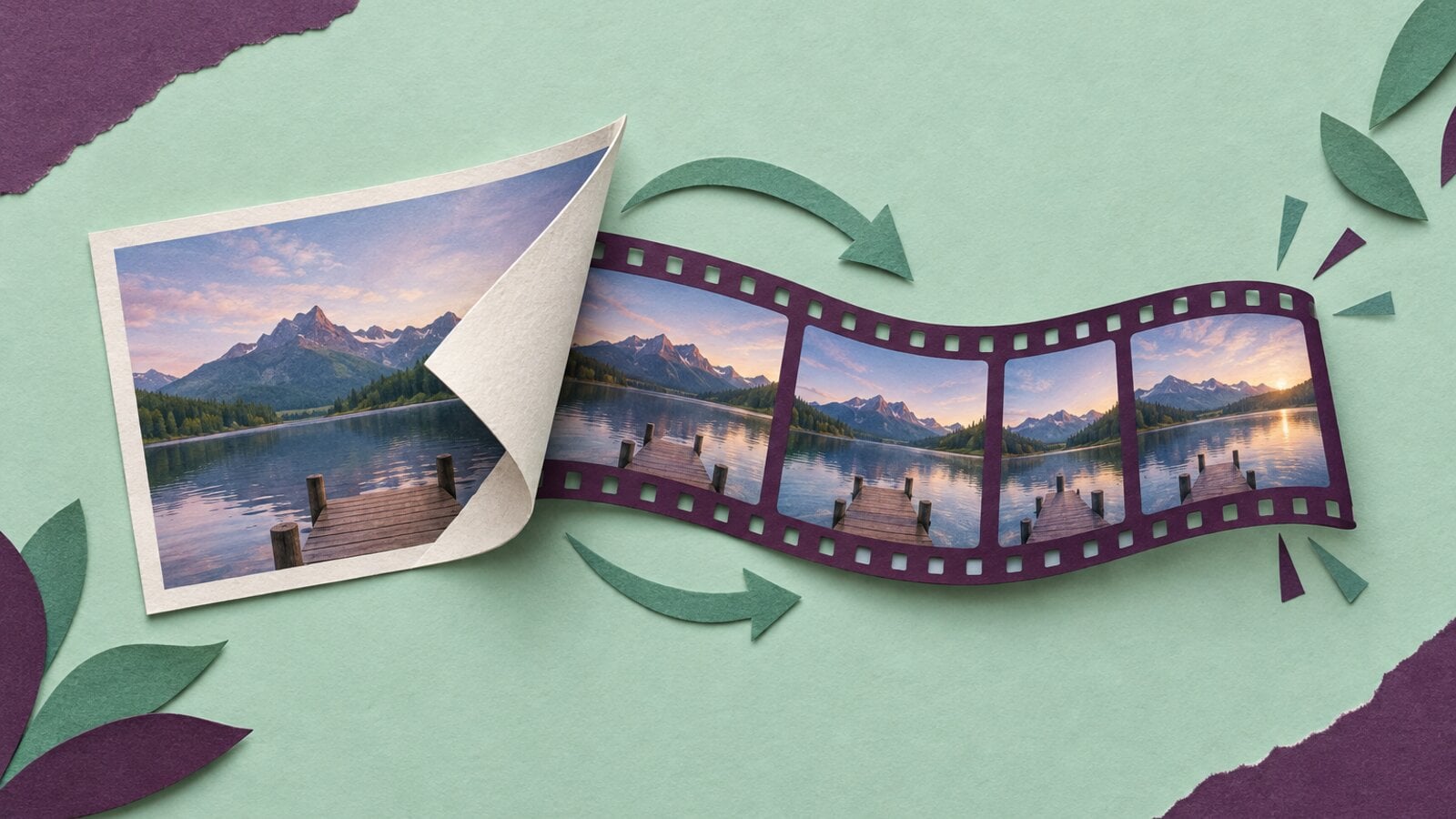
Image to video AI turns a still image into a short video clip. The main features are start frame control, motion prompts or automatic motion, duration and aspect ratio settings, native or muted audio, quality tiers, batch conversion of every image in a project, lip-sync from a still, reference images for consistency, and editing after generation. Tools differ most in how many of these you can control and in what happens to the clip once it exists. In VideoGen, Convert images to videos applies them to every still in a project, with clip models such as Seedance 2.5, MiniMax H3 Max, and Wan 3.0 behind the quality tiers.
What image to video AI does
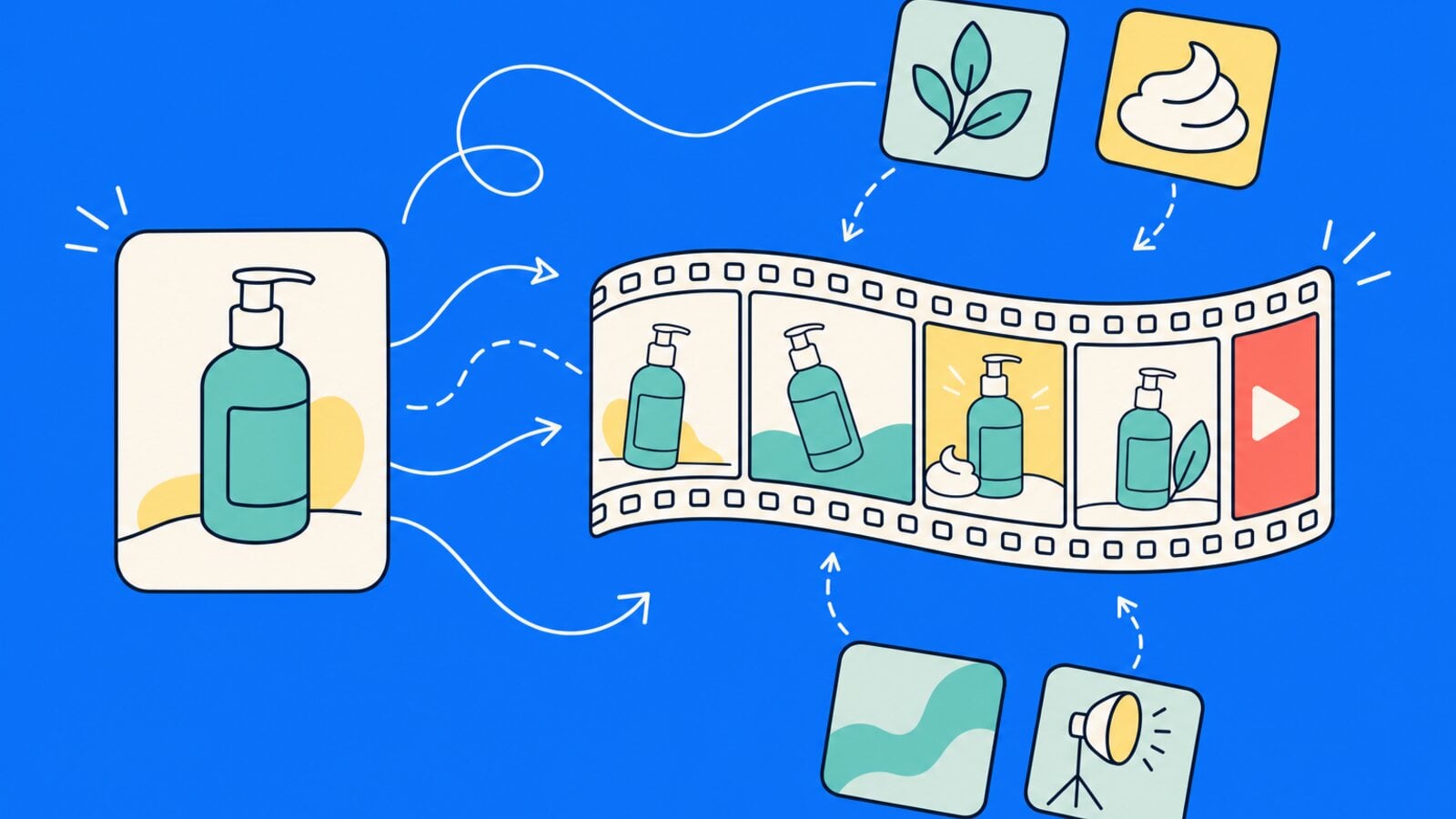
You give the model a picture. The model keeps what is in the picture and adds motion: a camera push, a product turn, water that moves, a person who speaks. The result is a clip you can place in a video.
The input can be a photo, a generated image, or a slide or storyboard frame. The still is the one frame you fully control, so its quality sets the ceiling for the clip.
Core features
Start frame control
The image you provide sets the first frame, and the model decides what moves from there. Choose the still with the end clip in mind: leave room for the camera to move, and keep the subject clear of the edges.
Motion prompts and automatic motion
A motion prompt tells the model what should move and how. Leaving it empty gives automatic motion: the tool reads the image and picks a plausible movement. In VideoGen you can write a motion prompt or leave it automatic.
Duration and aspect ratio
Clip length varies by model. In VideoGen, a single clip can run from 4 to 30 seconds on Seedance 2.5 and from 2 to 30 seconds on Wan 3.0; Seedance 2.0 Mini accepts 4 to 15 seconds, Flux 3 accepts 5 to 20 seconds, and Gemini Omni Flash accepts 3 to 10 seconds. VideoGen never shortens a request to fit a model; it moves to a model that supports the requested length. Happy Horse 1.1 produces 3 to 15 second clips. Aspect ratio is a project setting in VideoGen: 16:9, 9:16, and 1:1 are supported, and changing it is a one-request action on the whole project.
Native audio or muted output
Some models generate sound with the clip. That sound competes with a voiceover when the clip sits under one. VideoGen lets you mute generated audio during conversion, and muting is the recommended setting under a voiceover.
Quality tiers
You pick a quality tier in VideoGen (Low, Standard, High, or Max) and VideoGen picks the model for that request; the model chooser shows a "Powered by" line listing the models the tier can use. On Standard and High, a request with a start frame and no extra reference stills or video references starts on MiniMax H3 Max, and Seedance 2.5 is the first model tried on Max. Lower tiers suit drafts and background motion; higher tiers suit the clips viewers look at closely.
Batch conversion
In a VideoGen project, Convert images to videos animates every eligible still image in one request.
Lip-sync from a still
Some models can make a person in a photo speak. Happy Horse 1.1, from Alibaba, animates a still into 1080p video with lip-sync in 7 languages. For a longer script, an avatar workflow is the better fit.
Features that separate good tools from basic ones
A basic tool animates one image and hands you a file. A good tool connects the clip to the rest of the work.
- Reference images before the conversion. Generate the still with reference images so the start frame already matches your product or style. VideoGen's AI image generator supports image-to-image with up to 5 reference images on an edit, and the results can be used as scene visuals and then animated.
- An editable timeline after generation. Every converted clip in VideoGen is one scene on the timeline, where you can change timing, replace media, and re-generate that scene without redoing the rest.
- Separate control of generated audio. A mute option matters as soon as a voiceover or music track is involved.
- Both batch and single-image animation. Convert the whole project in one pass, then animate a single image from the editor when one scene needs a different motion.
For a model-by-model view, read best AI image to video models.
How image to video works in VideoGen
- Start a project from a script, voiceover, slides, or a storyboard. Each scene gets a still image, either uploaded or generated.
- If scenes must share a product or style, generate the stills with reference images.
- Open remix actions and choose Convert images to videos.
- Write a motion prompt or leave it automatic.
- Mute generated audio if the project has a voiceover.
- Pick a quality tier.
- Review the clips in the timeline. Re-generate any scene that misses, or animate a single image from the editor with its own prompt.
AI video clip generation, including Convert images to videos, needs a paid VideoGen plan. The free plan includes limited AI credits for other AI features and does not include exports. The pricing page lists the current options. The image to video AI page has examples of the output.
Write a motion prompt that works
- One clear action per clip.
- Name what must stay unchanged, such as the label or the face.
- Describe the camera move if you want one.
- Add light and mood in a few words.
- Keep it short. The still already carries the subject and setting.
Slow push in on the bottle. The label stays sharp and readable. Soft window light, steam rising behind it.
The camera orbits a quarter turn to the right. The chair stays still. Dust drifts in a warm afternoon beam.
For the full prompt formula across generation modes, read how to write a prompt for an AI video generator.
Frequently asked questions
Does image to video AI add sound, and can I turn it off under a voiceover?
Some models generate audio with the clip, and others return silent video. In VideoGen you can mute generated audio during conversion, which is the recommended choice under a voiceover or a music track.
Do I have to write a motion prompt?
No. Leave the prompt empty and the tool picks a plausible motion from the image. Write one when the movement has to show something specific, such as a label turning into view.
Can I get a 20-second clip from one image, or is image to video capped at 10 seconds?
It depends on the model. In VideoGen a single clip can run from 4 to 30 seconds on Seedance 2.5 and from 2 to 30 seconds on Wan 3.0, while Gemini Omni Flash accepts 3 to 10 seconds. VideoGen moves a 20-second request to a model that supports that length instead of shortening it.
Can image to video AI make a photo talk?
Yes, with a lip-sync capable model. Happy Horse 1.1 animates a still into 1080p video with lip-sync in 7 languages, and an avatar workflow is the better choice for a longer script.
Start a project, add your stills, and run Convert images to videos to see every scene in motion.
 Anton Koenig