How to Use GPT Image 2: Prompting Guide and Examples
Learn how to use GPT Image 2 with practical prompts for product visuals, layouts, editing, and image-to-video workflows in VideoGen.

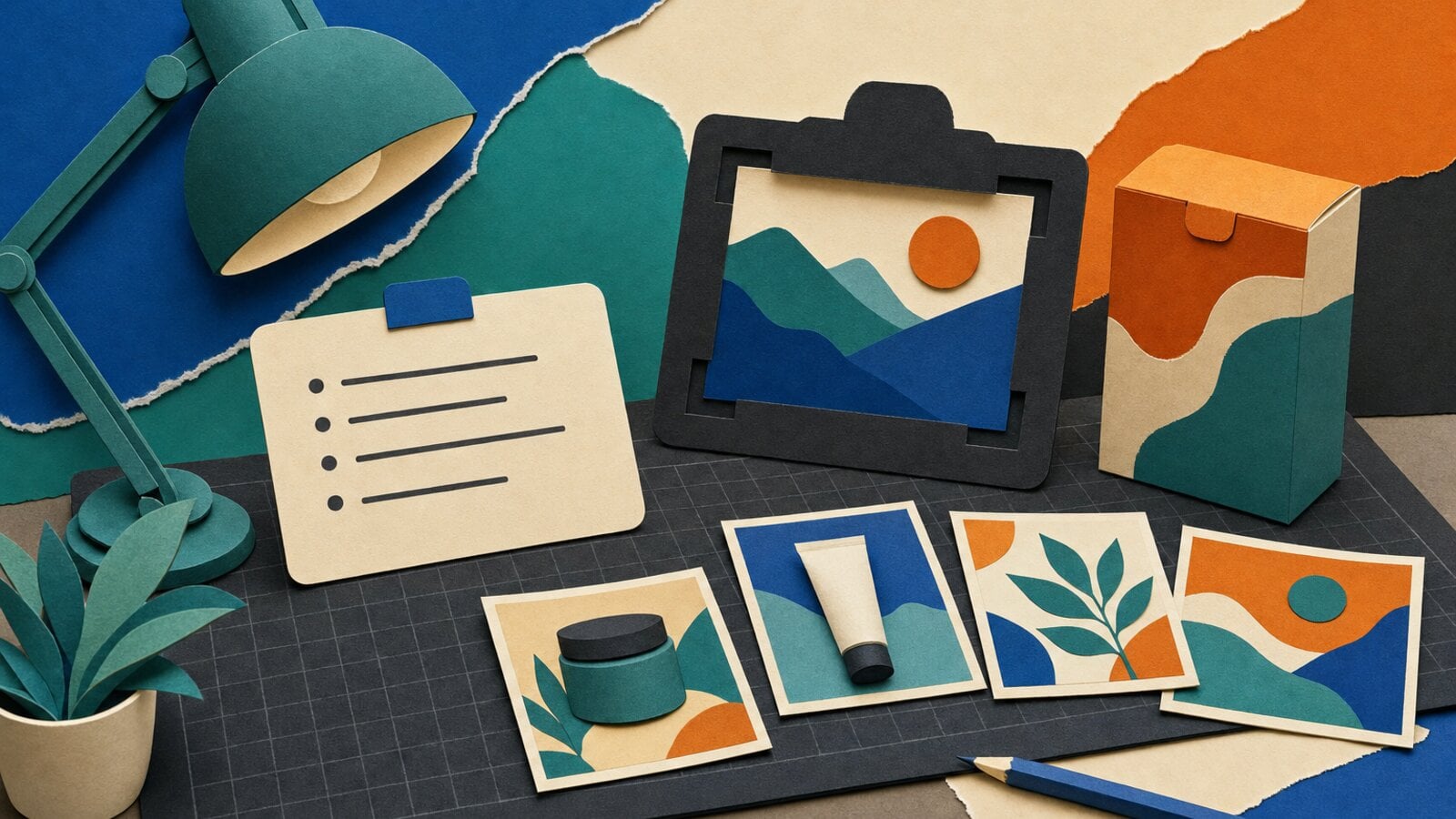
GPT Image 2 responds best to a clear creative brief. Instead of stacking adjectives, describe the subject, the physical details, the composition, the lighting, and the exact change you want the model to make.
This GPT Image 2 prompting guide collects the patterns that work well for marketing visuals, product scenes, layouts, and images that will become video.
The GPT Image 2 model page includes real VideoGen outputs that demonstrate these prompt patterns. The examples below use the existing generated assets from that page.
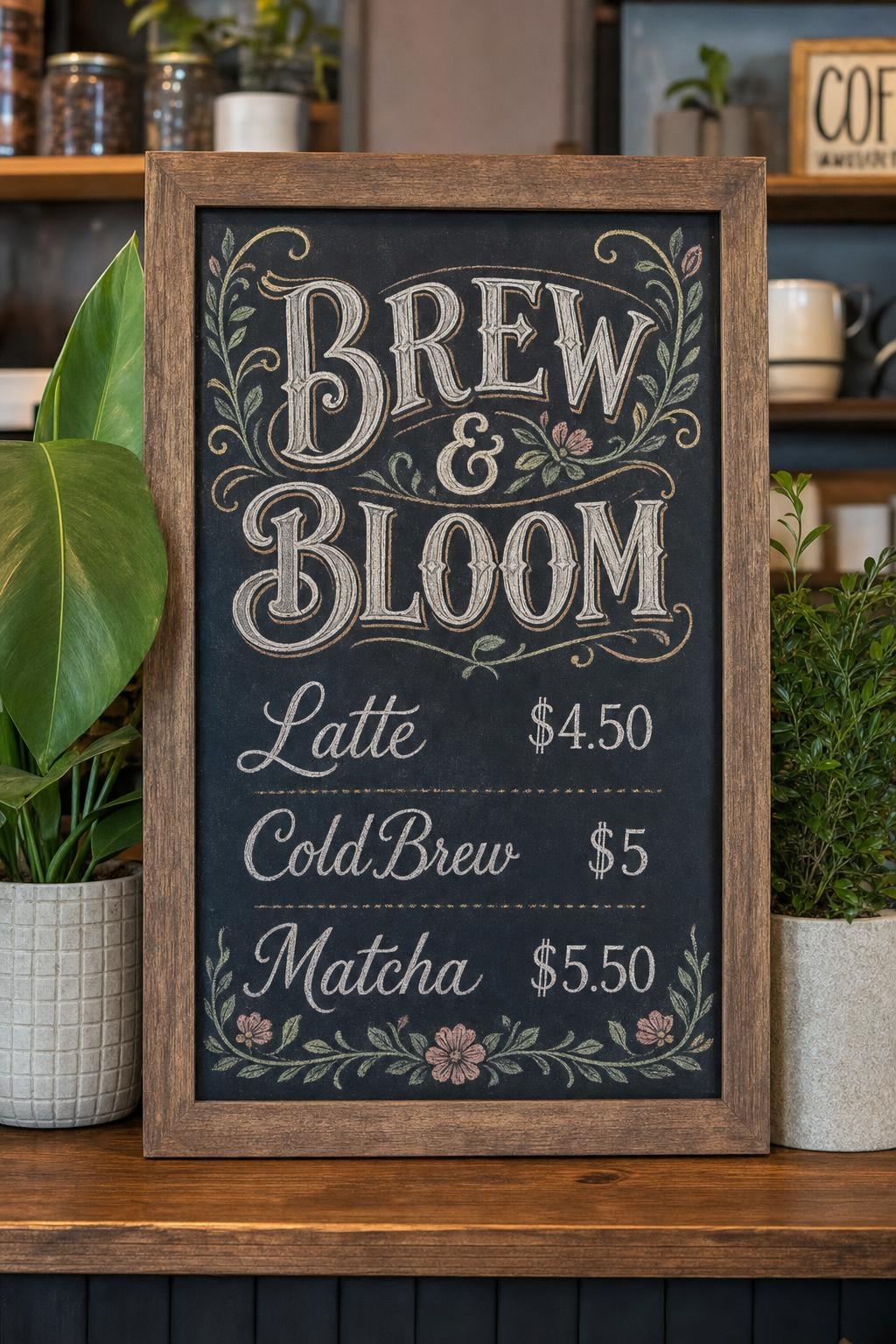
The cafe menu tests exact text, a tall composition, and a clear visual hierarchy.
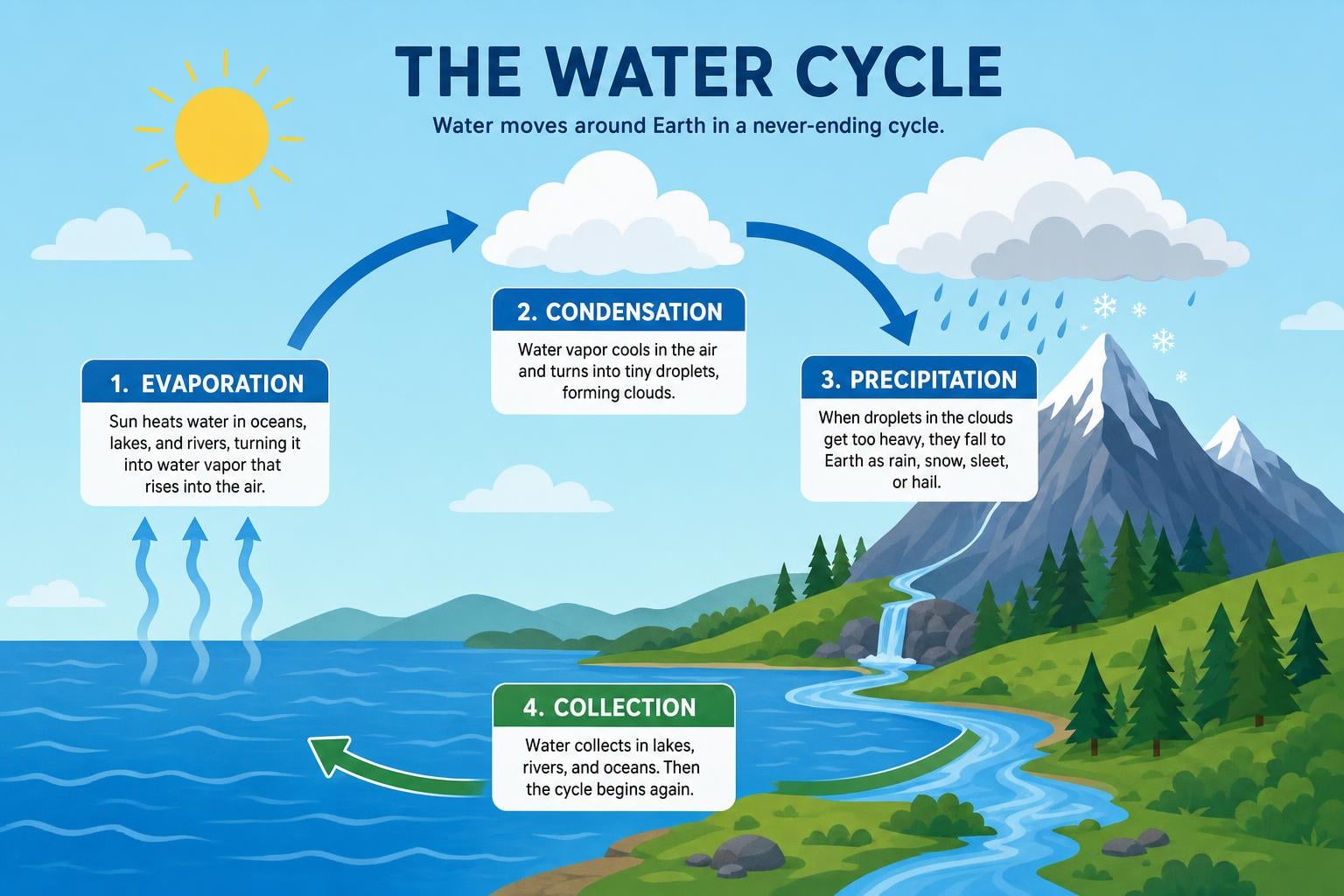
The water-cycle infographic tests labeled structure, arrows, and relationships between parts.
Start with a five-part prompt
A useful GPT Image 2 prompt usually includes:
- Subject: what is in the image.
- Action or state: what the subject is doing or how it should appear.
- Environment: the location, materials, and background.
- Camera and composition: angle, distance, framing, and negative space.
- Finish: lighting, color treatment, style, and any constraints.
Here is a product example:
A matte black insulated bottle standing on a pale limestone block, a few water droplets on the surface, soft window light from the upper left, warm beige studio background, close three-quarter product photograph, bottle positioned slightly left of center with empty space on the right for copy, natural shadows, no logo, no watermark.
The prompt gives GPT Image 2 things it can render. “Beautiful premium bottle” communicates a preference, but it does not define the light, surface, camera, or layout.
Write exact text as text
If an image needs a headline, label, or callout, put the words in quotation marks and say where they should appear:
A vertical launch poster for a new running shoe. The headline must read exactly "RUN FURTHER" in large white sans-serif letters at the top. A red running shoe sits in the lower half on a wet city street at dawn. Keep the headline on one line, leave clear space around it, and do not add any other words.
Review the rendered words before publishing. GPT Image 2 is strong at text, but small legal copy, prices, and product claims still need a human check.
Ask for composition, not just style
Style words become more useful when they follow a concrete layout:
A clean editorial infographic about a three-step coffee process. Three equal panels run left to right with a coffee bean, a grinder, and a finished cup. Each panel has one short label, a thin divider, a warm off-white background, dark charcoal linework, and one muted orange accent. Leave generous margins around the complete composition.
This kind of prompt is useful for:
- Product explainers.
- Presentation slides.
- Social carousels.
- Storyboard frames with a planned subject position.
- Script-to-video scenes that need room for captions.
An existing GPT Image 2 output illustrates a structured layout. Check label spelling, arrow direction, and reading order separately. This is an infographic example, not the output of the coffee prompt above.
Use reference images when identity matters
Upload a reference when a person, product, package, or recurring visual identity needs to stay recognizable. Then name what the model should preserve:
Use the uploaded product photo as the identity reference. Keep the product shape, cap, label placement, and proportions unchanged. Move it into a bright kitchen scene with morning light, a wooden counter, and a small bowl of citrus in the background. Change only the setting and supporting objects.
The instruction “change only the setting” is more useful than asking for a completely new product image. It tells the model which parts are fixed and which parts are editable.
Edit one decision at a time
When an image is close, avoid rewriting the entire brief. Use a focused edit:
Keep the subject, camera angle, lighting, and background unchanged. Replace the blue jacket with a cream linen jacket and preserve the subject's pose and face.
Small edits make it easier to understand what changed. They also preserve the useful work already present in the image.
Prompt for image-to-video handoff
If the image will become a moving clip, describe a composition that can support motion:
Landscape 16:9 product hero frame. A glass skincare bottle sits on a stone pedestal on the left third of the frame. The background is a softly blurred bathroom with warm morning light. Leave open space on the right. The bottle is upright, centered on the pedestal, and fully visible from cap to base.
The empty space gives the video workflow room for a push-in, a lateral camera move, or captions. The clear subject position also makes it easier to keep the product visible after animation.
Use GPT Image 2 in VideoGen
You can open the GPT Image 2 model page to review its specs and examples, then use the AI image tool inside a project. Generated images can flow into:
- Script to video as scene visuals.
- Storyboard to video as scene frames.
- Prompt to video as first-frame references.
- Entities as reusable product or actor references.
- Slideshows as designed stills.
For examples generated in VideoGen, open the GPT Image 2 page. For a model comparison, read GPT Image 2 vs. Nano Banana 2.
A quick prompt checklist
Before generating, ask:
- Did I name the subject and its physical details?
- Did I describe the light and the background?
- Did I specify the camera and aspect ratio?
- Did I put exact text in quotation marks?
- Did I say what to preserve during an edit?
- Did I describe where the image will be used?
You can also compare these patterns with Fal's GPT Image 2 prompting guide and How to Use GPT Image 2.
Start with one specific brief, review the result, and make the smallest edit that moves it closer to the final visual.