GPT Image 2.5 launch guide: what changed and how to use it
GPT Image 2.5 Flare is now available in VideoGen. See what changed, where it helps, and how to use it for marketing images and video workflows.


GPT Image 2.5 Flare is now available in VideoGen's GPT-backed image generation and editing paths.
OpenAI introduced the GPT Image 2.5 family on September 8, 2026. It includes two API models: Flare, the faster default for most applications, and Sunburst, the precision-focused option for longer creative work. VideoGen uses Flare because it improves quality and editing while keeping generation fast enough for complete video workflows.
This guide explains what changed, where GPT Image 2.5 helps, and how to use it without treating every image as a one-off result.
Source: OpenAI's GPT Image 2.5 announcement.
What changed in GPT Image 2.5
OpenAI describes four main improvements over GPT Image 2:
- Sharper visual detail: lighting and textures look more natural.
- Stronger reference fidelity: people, products, and other subjects are more likely to remain recognizable.
- More precise edits: the model is better at changing only the requested detail.
- Faster generation: OpenAI reports up to 50% shorter generation times for Flare than GPT Image 2.
The speed claim is useful, but editing control matters more for production. A marketing image often starts close to the target. The next request may only need to change a headline, product color, or background. Rebuilding the whole composition makes review slower and can introduce new mistakes.
GPT Image 2.5 is designed to preserve the useful parts while applying a focused change.
Flare versus Sunburst
Both models belong to the same GPT Image 2.5 family, but they serve different needs.
GPT Image 2.5 Flare is OpenAI's default API choice for most applications. It balances quality, speed, and editing control. This is the model used for the original examples on VideoGen's GPT Image 2.5 page.
GPT Image 2.5 Sunburst is intended for premium creative work that benefits from tighter control across edits and can accept longer generation times.
VideoGen does not expose provider selection as a promise for every request. Routing can depend on quality, inputs, reliability, and fallback availability. This keeps a generation from failing when another capable image model can complete the same job.
Where it helps in VideoGen
Product marketing
Product work needs a stable hero object, clear composition, and room for campaign copy. GPT Image 2.5 can produce the first concept and support focused revisions.
For example, this original VideoGen brief asks for a complete ecommerce layout rather than a product floating in an unspecified scene:
Premium ecommerce campaign image for a matte cream electric kettle named LUMA,
three-quarter product view on pale limestone, a thin ribbon of steam, warm
morning side light, restrained sage and charcoal palette. Editorial layout
with generous negative space on the left and exact headline text
"POUR WITH PRECISION". Small subheading "Quiet mornings. Better coffee."
beneath it. No other text, logos, hands, or extra products.
The prompt defines the product, camera view, surface, lighting, palette, layout, exact copy, and exclusions. Each detail has a purpose in the final asset.
Storyboard scenes
A storyboard frame has to do more than look good. It establishes the subject, framing, color, and lighting that later scenes need to continue.
Reference fidelity makes the first frame more useful when a product or actor appears again. Focused editing also helps when a team approves the overall scene but asks for a different camera angle, wardrobe detail, or product placement.
Presentation visuals
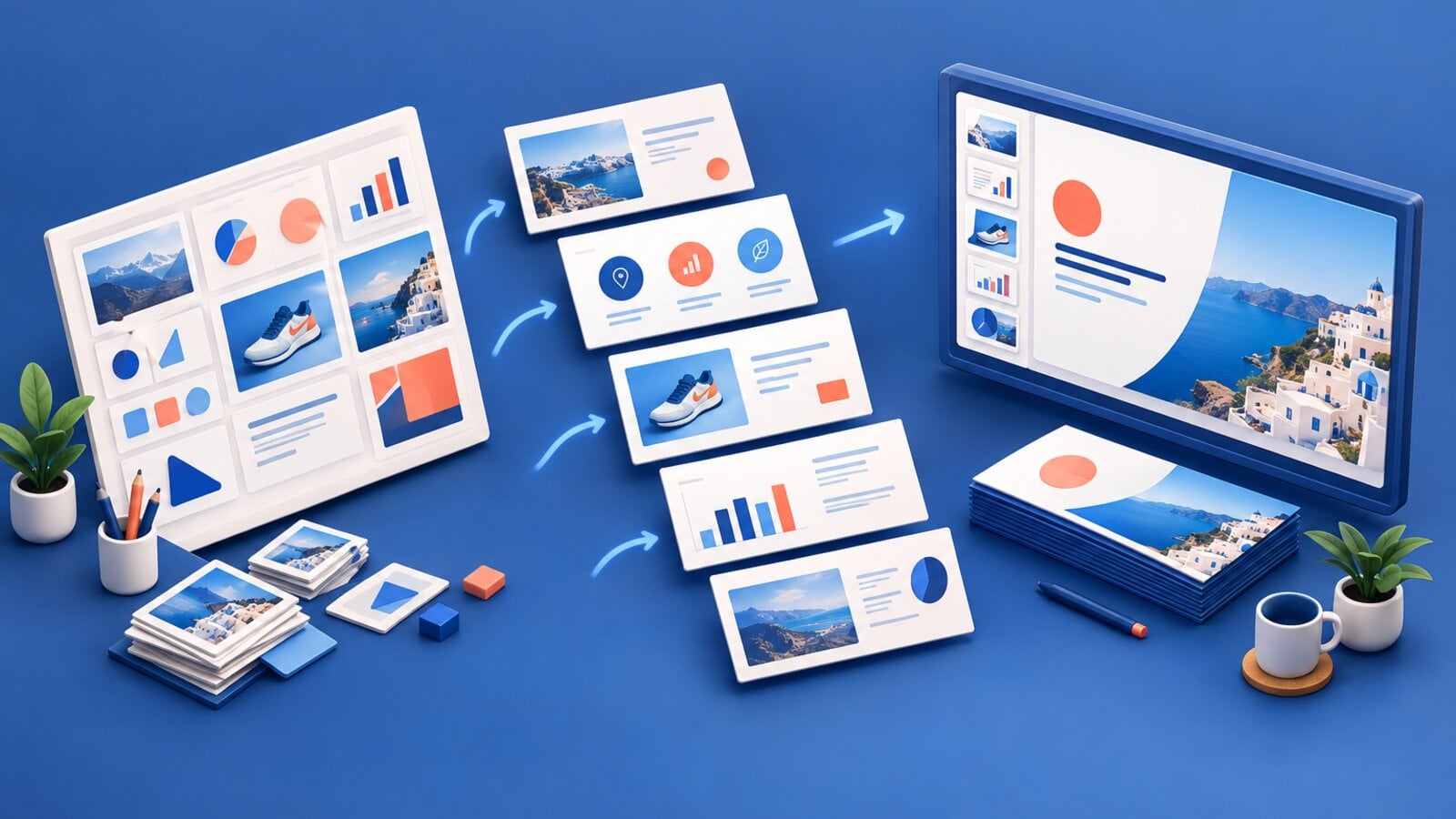
GPT Image 2.5 is useful for slide covers, process illustrations, and visual metaphors. It can follow more complex layouts and render limited text more reliably than earlier image models.
It is not a replacement for presentation software. Keep important numbers, citations, detailed charts, and copy that must remain editable as native slide elements. The GPT Image 2.5 slides guide explains this workflow in detail.
Reference-led edits
A good edit prompt names both the change and the locked details:
Keep the product, camera angle, crop, shadows, and background unchanged.
Change only the product color from cream to cobalt blue. Preserve the
material texture and all label copy exactly.
The first sentence protects the approved composition. The second makes the requested change measurable. The third protects details that often drift during an edit.
A practical generation workflow
1. Define the asset's job
State where the image will appear and what the viewer should notice first. A presentation cover, product ad, storyboard still, and social graphic need different compositions.
2. Write one clear hierarchy
Describe the primary subject first, then the composition, text, style, and constraints. Avoid stacking unrelated visual ideas into one request.
3. Generate at the final aspect ratio
Choose the intended canvas before generation. Cropping a square concept into a widescreen slide or vertical ad can remove the subject or destroy the negative space reserved for copy.
4. Review the details
Check exact text, product geometry, hands, repeated objects, and factual labels. A polished image can still contain a small error.
5. Edit the smallest possible scope
When most of the image works, request one focused change. List the details that must remain fixed.
6. Move the result into the complete workflow
Use the image as a storyboard frame, scene visual, reusable reference, or first frame for video generation. The image becomes more valuable when it carries a clear visual decision into the next step.
What to keep outside the generated image
Use native design or presentation elements for:
- Long body copy.
- Legal text and required disclaimers.
- Exact financial or scientific data.
- Charts that must be updated later.
- Links, citations, and accessibility labels.
Generate the visual structure, then add critical information in an editable layer. This produces a more reliable final asset and makes review easier.
Try the original examples
The GPT Image 2.5 model page includes original examples created for VideoGen. They cover an ecommerce campaign, presentation cover, strategy slide, and reference edit. Each example includes the full prompt so you can see how the brief maps to the output.
For more prompt structures, read GPT Image 2.5 prompts for marketing images. You can also read our earlier coming soon announcement for the first look at how the model fits Image Max.


 Richard D.